
Search the transcript on YouTube
- Open the video on youtube.com.
- Click the description under the video to expand it (…more), scroll down and click Show transcript.
- Type the word in Search in video at the top of the panel.
- Click a line with the word: the video plays from that moment.
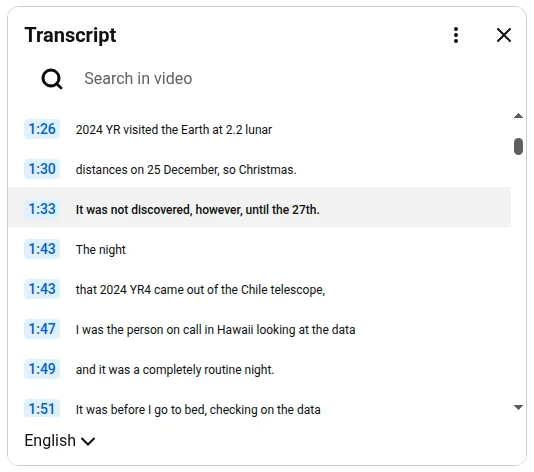
The search box doesn’t always respond: sometimes it keeps loading and shows nothing. Then use your browser’s find. With the transcript open, press Ctrl+F (⌘+F on a Mac) and type the word: the browser highlights it in the transcript lines, and Enter moves to the next one. Each line is a separate piece of text, so a phrase that runs across two lines won’t be found this way. Search for one or two words instead.
See every match in the full transcript
I often need to find where something was said in an hour-long talk, so I gave Transcript for YouTube™ its own search. Its panel next to the video shows the whole transcript, highlights every match and takes you from one to the next.

- Install Transcript for YouTube™ from the Chrome Web Store.
- Open a video on YouTube and click the SUB button in the player controls.
- Click Search in the panel, or press Ctrl+F (⌘+F on a Mac) inside it.
- Type a word or the start of it. Every match lights up, and the counter shows which one you’re on, for example 1/3. Enter goes to the next match and Shift+Enter to the previous one; the arrows next to the counter do the same.
- Click the time of a block to play the video from there.
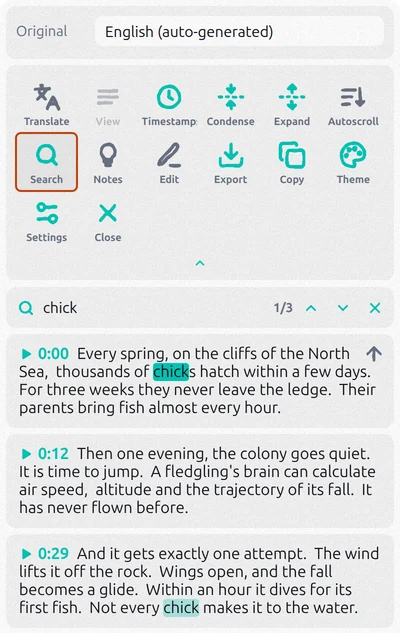
The search ignores capital letters and accents, so “cafe” also finds “café”. A phrase that YouTube splits between two subtitle lines is still found: the panel joins lines into blocks of text. And it searches what you see: with Translate on, it looks through the translation too, so you can find a word in your own language in a video in another language. The extension is free to start; heavy use needs a paid plan inside the extension.
The word isn’t found
- Auto-generated subtitles misheard it. Names, terms and rare words often come out spelled differently. Search for the start of the word or for a common word said next to it.
- The transcript is in another language. Search looks only in the language of the subtitles that are on. On YouTube, switch the language at the bottom of the transcript panel. In Transcript for YouTube™, pick the track in the Original row or turn on Translate.
- There’s no transcript at all. The video has neither the creator’s nor auto-generated subtitles: music videos, very short clips and some live streams. There’s no text to search. Auto-generated subtitles also take a while to appear after an upload, so for a brand-new video try again later.
Questions
How do I find the exact time a word is said?
Every line of YouTube’s transcript and every block in the Transcript for YouTube™ panel has its time next to it. Find the word, and the time is right there; click it to play the video from that moment.
Can I search for a phrase across all YouTube videos?
Both methods search inside the video you have open. YouTube’s main search box looks for videos, not for moments inside them.
Can I copy the part I found?
Yes. Select the lines with the mouse and copy them, or copy the whole transcript at once with Copy in the Transcript for YouTube™ panel.