
Convert a video to text in paragraphs
I added paragraphs to Transcript for YouTube™ because I often want to read a video rather than watch it: a lecture, an interview, a long talk. The extension joins YouTube’s short lines into sentences and paragraphs, so the whole video comes out as an article, not a list of captions.

- Install Transcript for YouTube™ from the Chrome Web Store.
- Open a video on YouTube and click the SUB button in the player controls.
- Pick the language at the top of the panel and click Export.
- Choose TXT and, next to Split, Paragraphs.
- Turn Timestamps off. Title and link adds the video’s name and address at the top.
- Click Export .txt to save the file, named after the video, or Copy to put the same text on the clipboard.
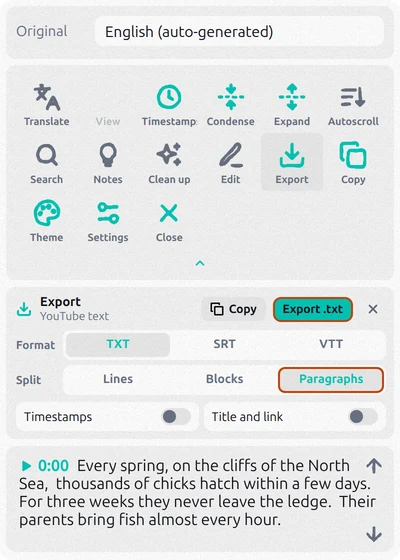
The file is ready to read or to paste into Word or Google Docs:
Every spring, on the cliffs of the North Sea, thousands of chicks hatch within a few days. For three weeks they never leave the ledge. Their parents bring fish almost every hour. Then one evening, the colony goes quiet. It is time to jump. A fledgling's brain can calculate air speed, altitude and the trajectory of its fall.

It has never flown before. And it gets exactly one attempt. The wind lifts it off the rock. Wings open, and the fall becomes a glide. Within an hour it dives for its first fish. Not every chick makes it to the water. Gulls patrol the cliffs, waiting for mistakes.
Paragraphs are for TXT only. SRT and VTT are subtitle files: every line in them needs its own time on screen.
The text in another language
Click Translate and pick a language. The export panel then gets a Text row: Original, Translation or Both. Choose Translation, and a video in Japanese turns into an English text.
Fix punctuation, names and misheard words
Most videos only have auto-generated subtitles. YouTube’s speech recognition often writes them in lowercase with little or no punctuation, and gets names and rare words wrong: “north see” instead of North Sea. Joined into paragraphs, that turns into a wall of text.
Clean up in the panel fixes it with AI. The extension first reads the whole video to get names and terms right, then cleans the text piece by piece, and you see it change in the panel. It fixes:
- punctuation and capital letters;
- names, places and terms, spelled the same way all through the video;
- misheard words;
- numbers, written as digits;
- [Music], filler words and repeats, which it removes.
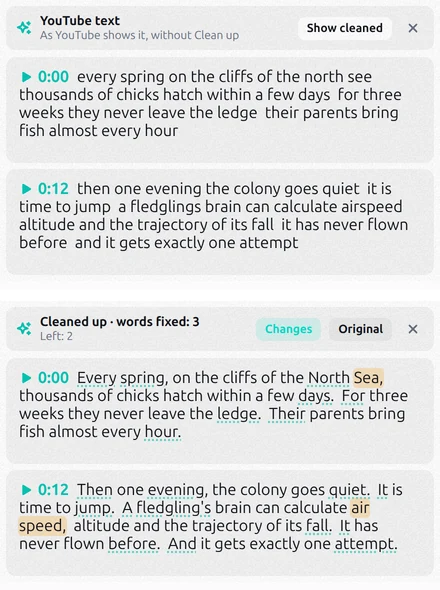
Changes highlights what was fixed, Original brings back YouTube’s text. The times stay the same, so subtitles exported after Clean up still match the speech. Copy and Export take the cleaned text.
If a word is still wrong, click Edit and fix the phrase right in the panel; Find & replace changes a name everywhere at once. The extension is free to start; heavy use needs a paid plan inside the extension.
Without an extension: copy the transcript from YouTube
- Open the video on youtube.com and click ...more under it to expand the description.
- In the Transcript section, click Show transcript.
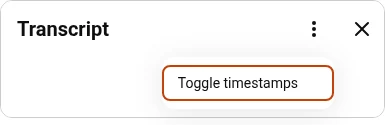
- At the top of the transcript panel, click ⋮ and choose Toggle timestamps. The times disappear.
- Select the text from the first line to the last and press Ctrl+C (⌘+C on a Mac).
You get the words without times, but still one short caption per line: pasted into a document, the text breaks every few words. For a long video, selecting it means scrolling through the whole panel, and auto-generated text stays as YouTube wrote it.
The video has no subtitles
Both ways take the text from subtitles. If there’s no CC button in the player, the video has neither the author’s nor auto-generated subtitles, and there’s no text to take. This happens with music videos, very short clips and some live streams. Auto-generated subtitles also appear a while after an upload, so for a brand-new video try again later.
A video without any subtitles needs speech recognition from the audio. Transcription services do this; long videos usually need a paid plan there.
Questions
How do I get a YouTube transcript without timestamps?
On YouTube, open the transcript and choose ⋮ → Toggle timestamps before you copy. In Transcript for YouTube™, turn Timestamps off in the export panel: copied and exported text comes without times.
Can I save the text as a Word or Google Docs file?
Transcript for YouTube™ saves a TXT file, which Word and Google Docs open like any other text. Or press Copy and paste the text straight into a document.
Can I convert a YouTube video to text on my phone?
The YouTube app shows the transcript: open the video description and tap Show transcript. Selecting a long transcript on a phone is awkward, though, and Chrome extensions work only on a computer.