
Turn on auto-translate on a computer
- Open the video and click CC in the player. While subtitles are off, the menu has no Auto-translate item.
- Click the gear (Settings) and open Subtitles/CC.
- If the video has several subtitle tracks, pick the one in the speaker’s language first: YouTube translates from the track that’s on.
- Click Auto-translate at the bottom of the list and choose your language. The languages are in alphabetical order.
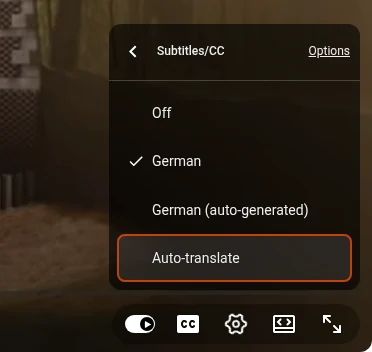
The subtitles switch to your language right away. It’s a machine translation made on the fly from the video’s subtitles, the creator’s own or auto-generated, so it’s good enough to follow a lecture or a review, while names, jokes and terms often come out wrong.
Auto-translate in the YouTube app
- Start the video and tap CC to turn on subtitles.
- Tap the gear and open Captions.
- Choose Auto-translate and then your language.
Item names differ slightly between app versions and between Android and iPhone. If there’s no captions item under the gear, the video has no subtitles.
Read the original and the translation side by side
On the video, YouTube shows one language at a time: either the original or the translation. I wanted both, line by line, to check a word I doubt or to learn a language from a video, so I added translation to Transcript for YouTube™. Its panel sits next to the video and shows each block of the original with its translation right under it.

- Install Transcript for YouTube™ from the Chrome Web Store.
- Open a video on YouTube and click the SUB button in the player controls.
- Click Translate. A Translation row appears at the top of the panel: choose your language there. Languages you’ve picked before are at the top of the list.
- View sets the order: Original + Translation, Translation + Original, or only one of them.
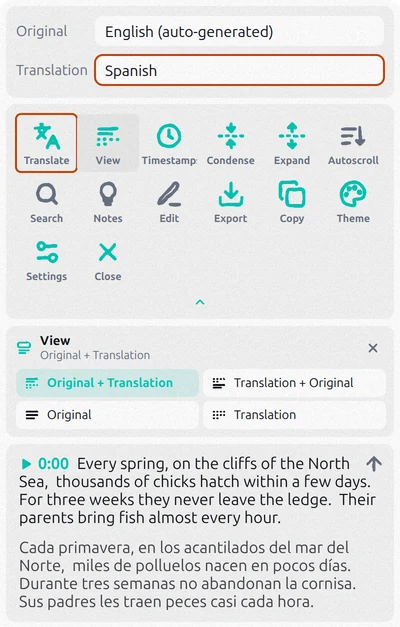
The translation comes from YouTube: it’s the same machine translation as Auto-translate in the player. The difference is that the original is right next to it, and the whole video is in front of you as text: read ahead, go back, or click a time to jump to that moment of the video. The extension remembers your choice, so the next video opens already translated.
Save the translated subtitles
Click Export and choose a format: SRT for video players and editors, TXT to read. In the Text row, pick Translation to keep only your language, or Both to put the original line above each translated one. The extension is free to start; heavy use needs a paid plan inside the extension.
Auto-translate is missing or doesn’t work
- No Auto-translate in the menu. Subtitles are off. Turn them on with CC or pick a track in Subtitles/CC, and Auto-translate appears at the bottom of the list.
- No CC button in the player. The video has neither the creator’s nor auto-generated subtitles, and YouTube has nothing to translate. This happens with music videos, very short clips and some live streams. Auto-generated subtitles also appear a while after an upload, so for a brand-new video try again later.
- The translation makes no sense. Check which track is on. Auto-generated subtitles mishear words and are sometimes made in the wrong language, and the translation repeats every mistake. If the video has the creator’s own subtitles, translate from those.
Questions
Can YouTube show subtitles in two languages at once?
Not on the video: the player shows one subtitle track at a time. In the Transcript for YouTube™ panel, next to the video, each block of the original comes with its translation.
How do I turn off auto-translated subtitles?
Open Settings → Subtitles/CC and choose one of the video’s own tracks, or turn subtitles off with CC.
Is YouTube auto-translate free?
Yes, it’s part of the YouTube player on a computer and in the app. You don’t need an extension to read translated subtitles, only to see them next to the original or to save them as a file.