
Download subtitles from any video
I made Subtitles Tool for YouTube™ because I kept needing subtitles as files: for notes, for translations, for video editing. It shows the subtitles in a panel next to the player and saves them in a couple of clicks.

- Install Subtitles Tool for YouTube™ from the Chrome Web Store.
- Open a video on YouTube and click the SUB button in the player controls.
- Pick the language at the top of the panel. Auto-generated subtitles are in the list too.
- Click Format until it shows the one you need: SRT, VTT or TXT.
- Click Export. Chrome saves the file like any other download, named after the video.
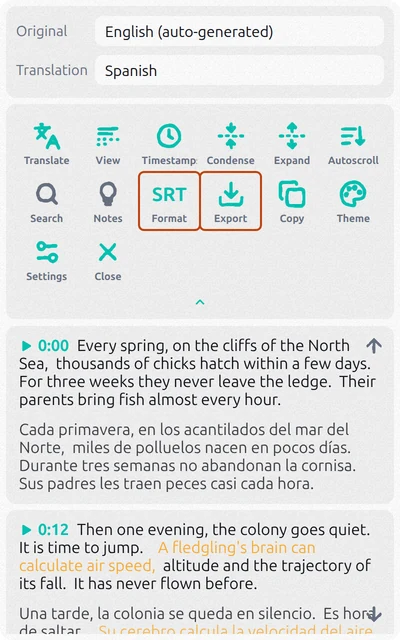
The panel joins short lines into blocks so they’re easier to read, and the file keeps the same blocks. For a video player, press Condense a few times before exporting: the blocks get shorter and fit on the screen.
Translated or bilingual subtitles
Click Translate and pick a language: the translation appears under each line. View decides what goes into the file: Original, Translation or both, Original + Translation. A bilingual SRT shows two lines on screen at once, which helps when you’re learning a language.
Copy takes the same text to the clipboard instead of a file. The extension is free to start; heavy use needs a paid plan inside the extension.
SRT, VTT or TXT: which one to choose
- SRT is the most common subtitle file. VLC and other video players, video editors like Premiere Pro, DaVinci Resolve and CapCut, and YouTube itself accept it.
- VTT (WebVTT) has the same timed lines, made for web players and HTML5 video.
- TXT is plain text to read, search or paste into a document. Turn Timestamps off to get the text without times.
An SRT file is plain text too: a number, the time, the line. You can open and fix it in Notepad or TextEdit. A bilingual one looks like this:
1
00:00:00,000 --> 00:00:03,200
Every spring, on the cliffs of the North Sea,
Cada primavera, en los acantilados del mar del Norte,
Your own video: download captions in YouTube Studio
If the video is on your channel, YouTube gives you the file itself:
- Open YouTube Studio and choose Subtitles in the menu on the left.
- Click the video.
- Next to the language, click ⋮ and choose Download.
- Pick the format: .srt, .vtt or .sbv.
This only works on channels you manage. For other people’s videos YouTube offers no download, only the transcript: open the video description and click Show transcript, then select and copy the lines. The timestamps come along with the text, and a long video means scrolling through the whole panel.
The video has no subtitles
A subtitle downloader doesn’t create subtitles; it saves the ones YouTube already has. If there’s no CC button in the player, the video has neither its own nor auto-generated subtitles. This happens with music videos, very short clips, videos without speech and some live streams. Auto-generated subtitles also take a while to appear after an upload, so for a brand-new video try again later.
If the panel says YouTube has temporarily limited subtitle requests, wait a few minutes or turn off your VPN.
Questions
Can I download auto-generated subtitles?
Yes. They’re marked “auto-generated” in the language list. They’re less accurate than subtitles added by the author: names and terms often come out wrong, so check the file before you publish it anywhere.
Can I download YouTube subtitles on my phone?
Chrome extensions work only on a computer. On a phone the YouTube app shows the transcript, but it can’t save it as a file.
Is it legal to download YouTube subtitles?
Subtitles belong to the author of the video. Saving them for yourself, to read, study or take notes, is the usual use. To publish someone else’s subtitles or upload them with their video, ask the author first.