
Summarize a video right next to the player
I added AI notes to Subtitles Tool for YouTube™ because I kept pasting transcripts into chatbots and then hunting for the moment each point came from. Now the summary sits next to the video, and a click on a chapter takes you to that moment.

- Install Subtitles Tool for YouTube™ from the Chrome Web Store.
- Open a video on YouTube and click the SUB button in the player controls.
- Click Notes, the light bulb in the panel.
- Give it a few seconds: the notes appear on a tab next to Subtitles. Switch tabs to go back to the subtitles.
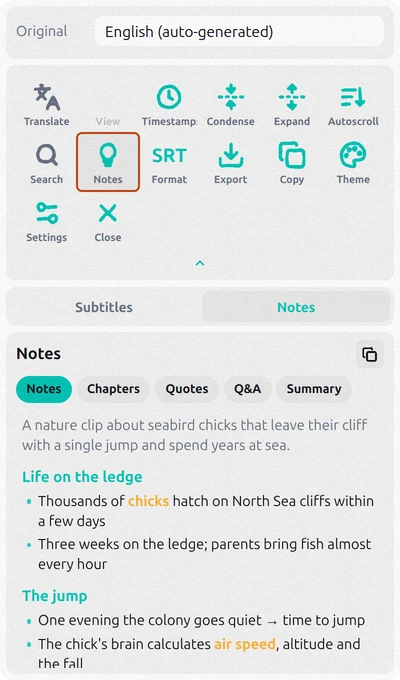
The extension works from the video’s subtitles, the author’s own or auto-generated, so any video with a CC button can be summarized, whatever its language. The notes are written in the language your YouTube is set to: a lecture in Japanese gives you notes in English.
Notes, chapters, quotes, Q&A or a summary
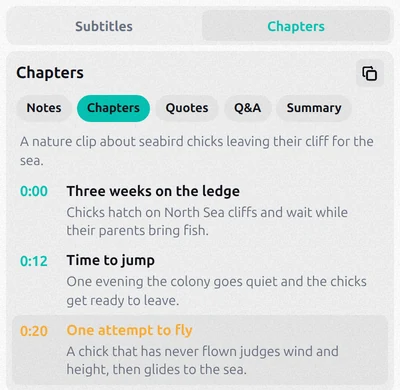
Above the text there are five formats. Pick one and click its button, for example Make Chapters:
- Notes: the video as a student would write it up. Sections, short points, key terms in bold, no timestamps.
- Chapters: the parts of the video, each with a start time and a line on what it covers.
- Quotes: the most striking lines, in the speaker’s own words.
- Q&A: the questions the video answers, each with a short answer.
- Summary: the main ideas in a few short points.
Every format except Notes shows where each point is in the video. Click its time and the video jumps there; while you watch, the current point is highlighted.
The copy icon takes the summary to the clipboard. Copy as text pastes neatly into documents and email; Copy as Markdown is for Notion or Obsidian, with the video’s title, link and timestamps that open the video at that moment.
The first few summaries are free; a paid plan inside the extension gives more every day. A summary you’ve made once opens again without counting.
Summarize with Gemini or ChatGPT
Gemini: paste the link
- Open gemini.google.com or the Gemini app and sign in with your Google account.
- Paste the YouTube link and write: “Summarize this video in 7 points”.
- If Gemini asks to connect YouTube, allow it.
Gemini gets the video from YouTube and answers in the chat. This works for most public videos, but for some it says it can’t help, and a long video sometimes gets only a general overview.
ChatGPT and other chatbots: paste the transcript
A chatbot that can’t open YouTube needs the text. Copy the transcript: on YouTube, open the description and click Show transcript, or press Copy in the extension’s panel. Then paste it with a request like this:
Summarize this transcript of a YouTube video: one line on what
it’s about, then the 5–7 main points with timestamps.

[transcript]
This works in ChatGPT, Claude, Gemini or any other chatbot. The downsides: a few steps for every video, a very long transcript may not fit into one message, and the timestamps in the answer are plain text.
YouTube’s own Ask button
On some videos YouTube shows an Ask button under the player. It’s YouTube’s AI: it can summarize the video or answer questions about it. The button appears for signed-in users in some countries and languages, mostly in the mobile app, and not on every video.
The video can’t be summarized
Subtitles Tool reads subtitles, not the picture. If there’s no CC button in the player, the video has no subtitles and there’s nothing to summarize. This happens with music videos, clips without speech and some live streams; the panel then says there’s too little speech in the video. Auto-generated subtitles appear a while after an upload, so for a brand-new video try again later.
Questions
How accurate is an AI summary?
It sticks to what’s said in the video, but auto-generated subtitles often get names and terms wrong, and the summary can repeat those mistakes. Before you quote a name or a number, find that moment in the video and listen to it: Chapters and Summary show where it is.
Can I summarize a video in another language?
Yes. Subtitles Tool for YouTube™ writes the summary in the language your YouTube is set to, whatever language the video is in. With Gemini or ChatGPT, just ask for the language you want.
Can I summarize YouTube videos on my phone?
Chrome extensions work only on a computer. On a phone, paste the video link into the Gemini app, or use the Ask button in the YouTube app if you have it.