
Right-click twice: built into Chrome
- Open the video on youtube.com and start playing it.
- Right-click the video. YouTube shows its own menu; ignore it.
- Right-click the same spot again and choose Picture in picture.
The video jumps into a small window in the corner of the screen. Drag it anywhere and pull a corner to resize it. It stays on top when you switch tabs or open another app.
The built-in window is bare. YouTube subtitles don’t show up in it, and you can’t change the speed, rewind or jump to a chapter without going back to the YouTube tab.
Chrome’s media button
While a video plays, Chrome shows a media controls button in the toolbar, to the right of the address bar. Click it, and in the card for the YouTube video press the picture-in-picture icon. This works from any tab, without going back to YouTube.
Don’t confuse this with YouTube’s own miniplayer (the I key or the miniplayer button in the player). It only shrinks the video in the corner of the YouTube tab and disappears as soon as you switch to another tab.
A mini player with full controls
If you watch like this every day, the bare window gets in the way. I built Mini Player for YouTube™ to fix that: it adds a button to the YouTube player, and one click sends the video into a floating window.

- Install Mini Player for YouTube™ from the Chrome Web Store.
- Open any YouTube video and click the mini player button at the bottom right of the player.
- Drag the window wherever you like and resize it.
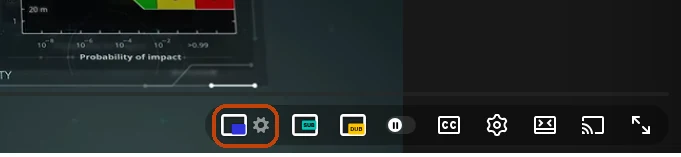
The extension has two modes. Basic opens Chrome’s built-in picture-in-picture in one click instead of two. Advanced opens its own window with rewind and forward, speed, subtitles, chapters, loop and the next video in the playlist.
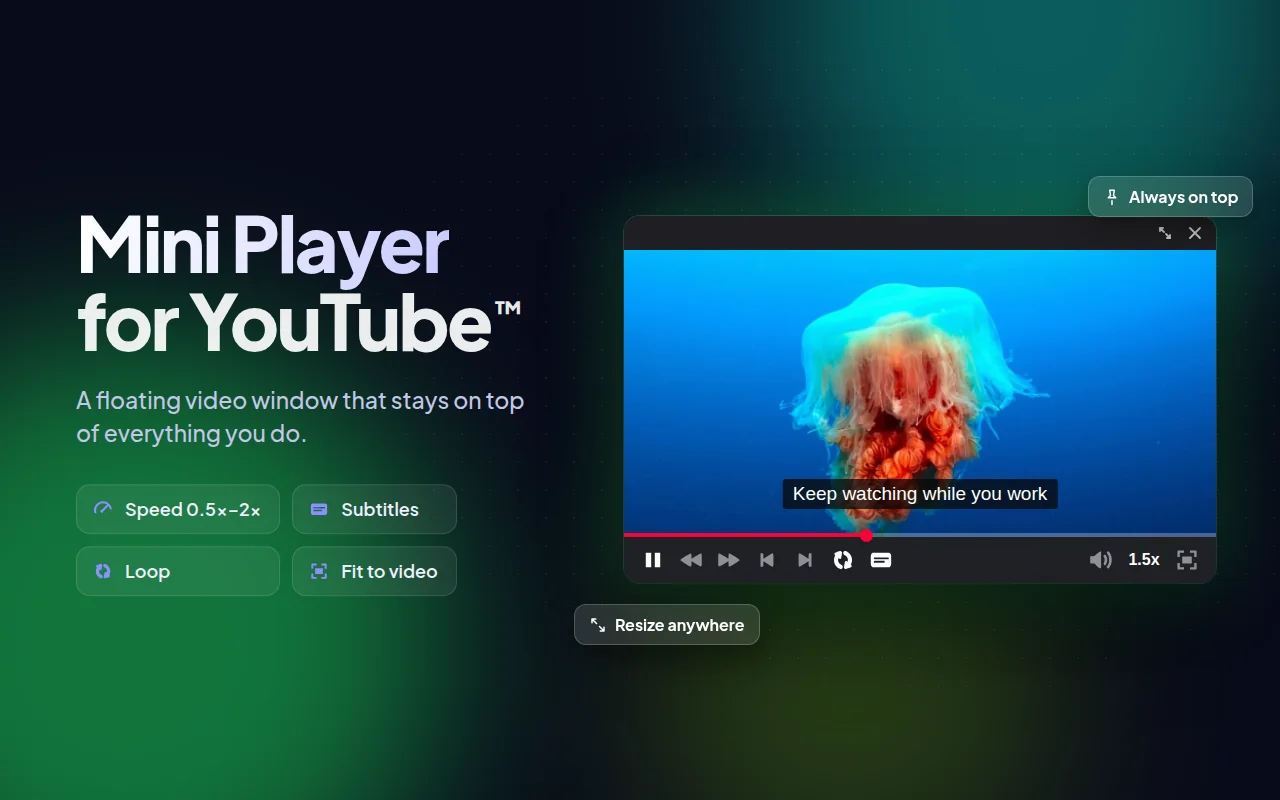
Both modes come with a free allowance; for unlimited use there are paid plans inside the extension.
Picture-in-picture not working?
Nothing happens when I right-click
The first right-click opens YouTube’s menu, not Chrome’s. Right-click a second time without moving the mouse, and Chrome’s menu with Picture in picture appears.
The option is missing or greyed out
Start playing the video first and wait for any ad to finish. If it still doesn’t work, update Chrome and turn off other YouTube extensions one by one: some of them replace the player and break picture-in-picture.
The window disappeared when I switched tabs
That was YouTube’s miniplayer, not picture-in-picture. It lives only inside the YouTube tab; use one of the methods above to get a window that stays on top.
What about my phone?
On phones, picture-in-picture is a feature of the YouTube app, and in many countries it needs YouTube Premium. The methods in this article are for a computer.