
How to tell a video is auto-dubbed
Open the video description. An auto-dubbed video has a How this was made section with the Auto-dubbed label.

Switch one video back to the original voice
- Click the gear icon (Settings) in the bottom right of the player.
- Open Audio track.
- Choose the track marked original, for example English (US) original. The dubbed tracks are listed below it, under Auto-dubbed.
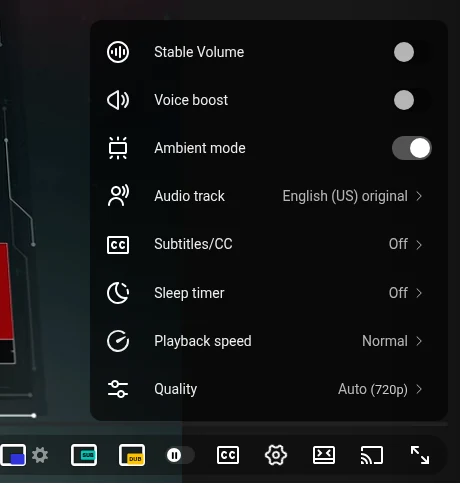
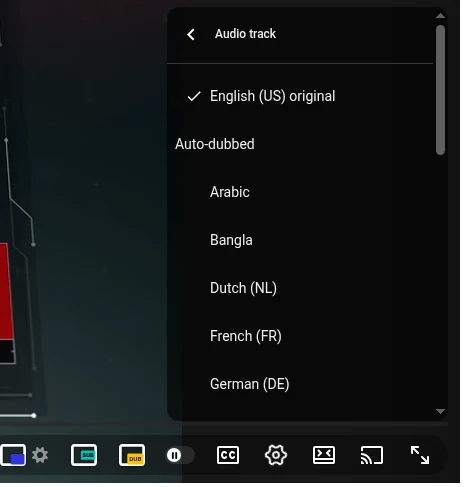
In the YouTube app on a phone it works the same way: tap the video, then the gear, then Audio track.
Stop YouTube dubbing languages you understand
YouTube picks the audio track using the languages it thinks you speak. Tell it which languages you understand, and videos in those languages will play with the original voice.
- On youtube.com, click your profile picture and open Settings.
- Go to Playback and performance.
- In the Language section, click Add or edit languages and add every language you watch videos in.

The setting belongs to your account, so it works on every device where you’re signed in. At the time of writing, YouTube has no single switch that turns auto-dubbing off for every video: for a language that isn’t on your list, switch the track by hand as shown above.
If you’re a creator and don’t want your own videos dubbed, that’s set separately, in YouTube Studio settings.
Keep the original voice and still understand the video
Many people turn the dub off because the AI voice drowns out the original: the creator’s intonation, music and atmosphere are gone. But the dub was useful when you don’t know the language. I built Audio Translator for YouTube™ for exactly that case: the original stays, and the translation is only played when you ask for it.

- Install Audio Translator for YouTube™ from the Chrome Web Store.
- Open a video in a language you don’t speak and click the yellow DUB button in the player.
- Press Listen. Use the Video and Dub sliders to decide how loud the original and the translation are.
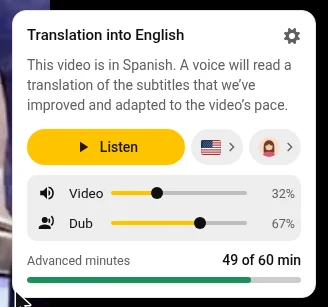
There are two modes. Free reads YouTube’s auto-translated subtitles with your browser’s voice and costs nothing. Advanced uses a natural translation adapted for dubbing and a lifelike female or male voice; it comes with free minutes to try it, and more minutes with a paid plan.
Questions
Why does YouTube dub videos at all?
YouTube translates videos automatically so that people who don’t speak the creator’s language can watch them. Creators can turn it off for their own videos.
I switched to the original, but the next video is dubbed again
The audio track choice applies to one video. To make it stick, add the video’s language to your preferred languages (method 2).
There’s no Audio track item in the menu
Then the video has only one audio track and isn’t dubbed: you’re already hearing the original.