
Clear your chat history on a computer
- Open chatgpt.com and click your profile picture in the bottom-left corner.
- Choose Settings, then Data controls.
- Next to Delete all chats, click Delete all and confirm.
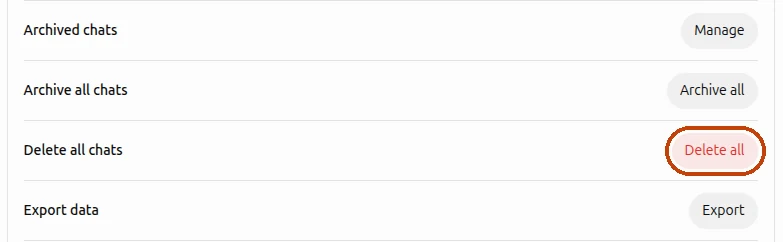
This deletes every chat in your account, including chats inside projects. They disappear from the phone app too: your history belongs to your account, not to the device.
Delete only part of your history
ChatGPT can delete everything at once or one chat at a time. Often you need something in between: remove the chats with personal details or everything from an old project, and keep the rest. For that, I built a Chrome extension that adds checkboxes to the chat list.

- Install Delete All Chats for ChatGPT™ from the Chrome Web Store.
- Open chatgpt.com and click 🗑 Select above your chat list.
- Tick the chats you want to delete. Or press Select all and untick the ones you want to keep.
- Click Delete and confirm.
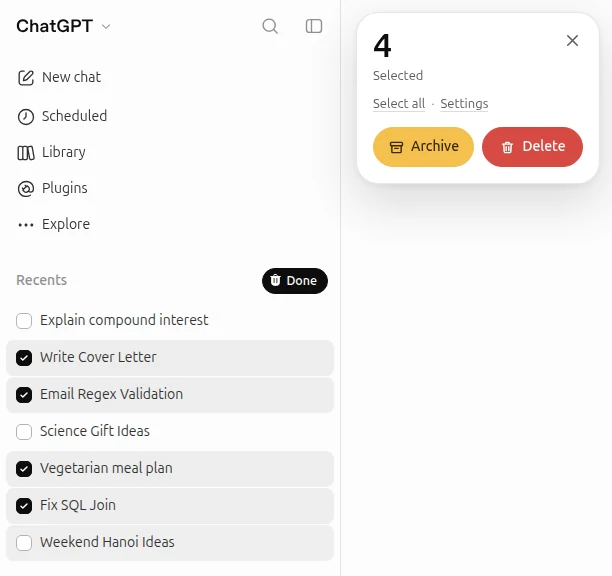
ChatGPT deletes chats one by one, so a long history takes a few minutes. You can keep using ChatGPT in the meantime, and if you close the tab, the extension carries on the next time you open ChatGPT. It works in Chrome on a computer and is free for occasional clean-ups; for heavy use there are paid plans inside the extension.
Clear your history in the ChatGPT app
The ChatGPT app for iPhone and Android has the same setting:
- Open the menu and tap your name at the bottom to open Settings.
- Tap Data controls.
- Tap Delete all chats and confirm.
To delete a single chat, press and hold it in the list and tap Delete. The app can’t select several chats at once, so to clear out a few dozen and keep the rest, use a computer (see above).
Delete what ChatGPT remembers about you
Deleting chats doesn’t clear ChatGPT’s memory. Details it saved about you, like your name, job or preferences, are stored separately, stay after the chats they came from are gone and keep showing up in new conversations. Memory settings are in Settings → Personalization:
- Saved memories: open the list of memories and delete the ones you don’t want, or all of them. You can also tell ChatGPT right in a chat to forget something.
- Past chats: turn off Reference chat history, and ChatGPT stops drawing on your old conversations. What it learned from them is deleted from OpenAI’s systems within 30 days.
To remove something you told ChatGPT for good, delete both the memory and the chat where you mentioned it.
Delete shared links
If you’ve ever shared a chat with the Share button, anyone with the link can open it. All your links are listed in Settings → Data controls → Shared links → Manage. Delete the ones you no longer want public: a deleted link stops opening.

What OpenAI keeps after you delete
Deleted chats disappear from your history right away. According to OpenAI, they’re then permanently deleted from its systems within 30 days, unless the data has already been de-identified or has to be kept for security or legal reasons. Neither ChatGPT nor OpenAI support can bring a deleted chat back.
Archiving isn’t deleting: an archived chat only leaves the sidebar and stays in your account. If you’ve archived chats, delete them in Settings → Data controls → Archived chats → Manage. Files you saved separately to your library stay too; delete them on their own.
Stop ChatGPT from saving new chats
To chat without adding to your history, start a temporary chat: in a new chat, click the dashed speech bubble icon in the top-right corner. Temporary chats don’t appear in your history, don’t use or create memories and aren’t used to train models. OpenAI may keep a copy for up to 30 days for safety.
If you want to keep your history but not share it for training, turn off Improve the model for everyone in Data controls. Your chats will still be saved.
Questions
Does ChatGPT have a separate search history?
No. Questions you asked with web search are ordinary chats in your history, so delete them like any other chat. The magnifier above the chat list only searches through your chats.
Can I get my deleted ChatGPT history back?
No. A deleted chat can’t be restored by you or by OpenAI support. If you might need a conversation later, archive it or export your data before deleting.
Does clearing my history delete my account?
No. Your account, subscription and settings stay as they are. Deleting the account is a separate option in settings, and it can’t be undone either.