
Translate the audio of any YouTube video with a voice-over
YouTube can translate subtitles, but it doesn’t read them aloud, and only some videos are dubbed. I built Audio Translator for YouTube™ for all the rest: it translates the video’s subtitles and reads them aloud in your language, in time with the video.

- Install Audio Translator for YouTube™ from the Chrome Web Store.
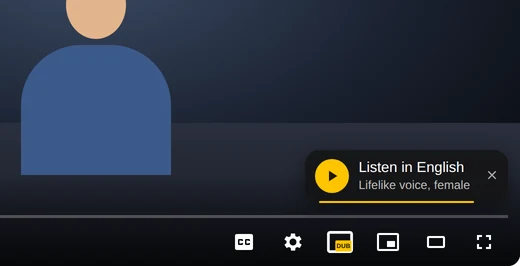
- Open a video in a language you don’t speak. In its first seconds, Listen in English appears on the video (with your language in place of English): click it, and the voice-over starts.
- Missed it? Click the yellow DUB button in the player and press Listen.
- The video waits on pause for a few seconds while the translation is prepared. You don’t have to wait: press play, and the voice joins in when it’s ready.
The voice doesn’t read the subtitles word for word: we improve the translation and adapt it to the pace of the video, so the voice keeps up with the speaker instead of racing ahead or falling behind.
Choose the voice and the volume
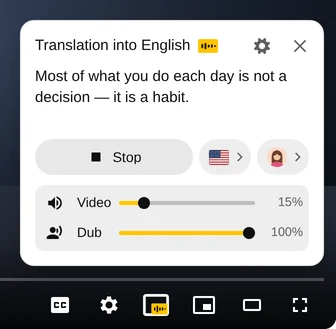
This is a voice-over, not a replacement track: the original stays audible under the translation, so you still hear the speaker’s tone, the music and the laughter. Two sliders in the panel set the balance: Video is the original, Dub is the translation. By default the original plays at 15%; drag it down to zero to hear only the translation.
The portrait next to the flag is the voice. There are lifelike female and male voices, plus the voices built into your browser and computer. The flag is the translation language: by default it’s the language your YouTube is in, and there are 49 to choose from. The extension remembers your choice for the next videos.
While the voice reads, the panel hides after a few seconds so it doesn’t cover the video, and a small caption with a wave stays above DUB. Point at the button to bring the panel back. To stop, press Stop in the panel or click DUB again.
Which videos can be translated
- The video needs subtitles: the creator’s own or auto-generated, which YouTube makes for most videos with speech. If there are none, the panel says the video can’t be dubbed.
- If the video is already in your language, the panel says so: pick another language with the flag or find a video in a foreign language.
- If YouTube has auto-dubbed the video, the extension switches to the original track while the voice-over plays and brings the dub back when you stop.
- It works on YouTube in Chrome on a computer.
If the video already has a dub
Some videos have dubbed audio tracks, uploaded by the creator or made by YouTube with an AI voice. A dub replaces the original voice entirely.
- Click the gear (Settings) in the player and open Audio track.
- Choose your language. Dubs made by YouTube are listed under Auto-dubbed.
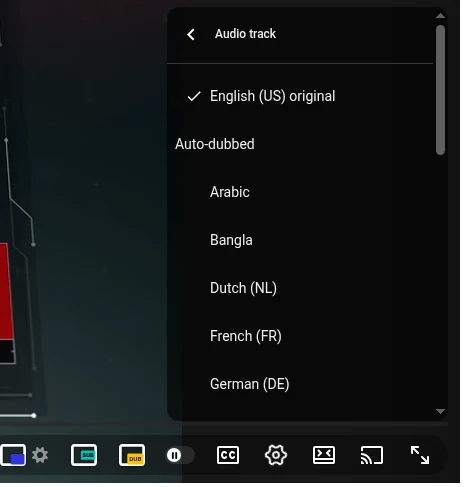
If there’s no Audio track item in the menu, the video only has the original voice. Which languages to dub into is decided by YouTube and the creator, so most videos have no dub in your language, and that’s where a voice-over helps.
Questions
Is it free?
You can start without paying: free dubbing minutes top up regularly. A paid plan gives you more minutes every day.
Can I translate a video’s audio to English?
Yes. Click the flag in the panel and pick English. The voice-over works from any language that has subtitles, and the extension keeps English for the next videos.
How is this different from YouTube’s auto-dubbing?
YouTube’s auto-dub replaces the voice and exists only for some videos and languages. A voice-over works on any video with subtitles, in 49 languages, and keeps the original audible under the translation.
Does it work on a phone?
No: Chrome extensions only work on a computer. In the YouTube app on a phone, you can switch to a dubbed track if the video has one: tap the gear, then Audio track.
Can I translate the audio of a video file?
Audio Translator works with videos on YouTube. For a file on your computer, you need a video translation service: you upload the file and download a dubbed copy.