

Delete a comment under the video
- Open the video and find your comment. If there are hundreds of comments, open yours from your comment history (method 2): it takes you to the place where you posted it.
- Point to the top right of your comment and click More ⋮. Replies have the same menu.
- Choose Delete and confirm.
The comment disappears from YouTube for everyone, together with the replies under it, and can’t be restored. If people have already answered and you only want to fix what you wrote, choose Edit instead: the replies stay.
Delete old comments from your comment history
Comment history lists every public comment your account has posted, so you don’t need to remember the video:
- On youtube.com, click History in the left menu. If you only see icons, click ☰ at the top left.
- On the right, under Manage all history, click Comments. Google My Activity opens on Your YouTube Comments, newest first.
- Find the comment and click ✕ next to it. It’s deleted from YouTube, not only from the history.
Each ✕ deletes one comment. The page has no search and no way to select several comments, so cleaning up years of history means scrolling back day by day and clicking ✕ on every comment. You also can’t clear the history and keep the comments: the history is simply the list of your comments, and it empties as you delete them.
Delete many or all of your comments at once
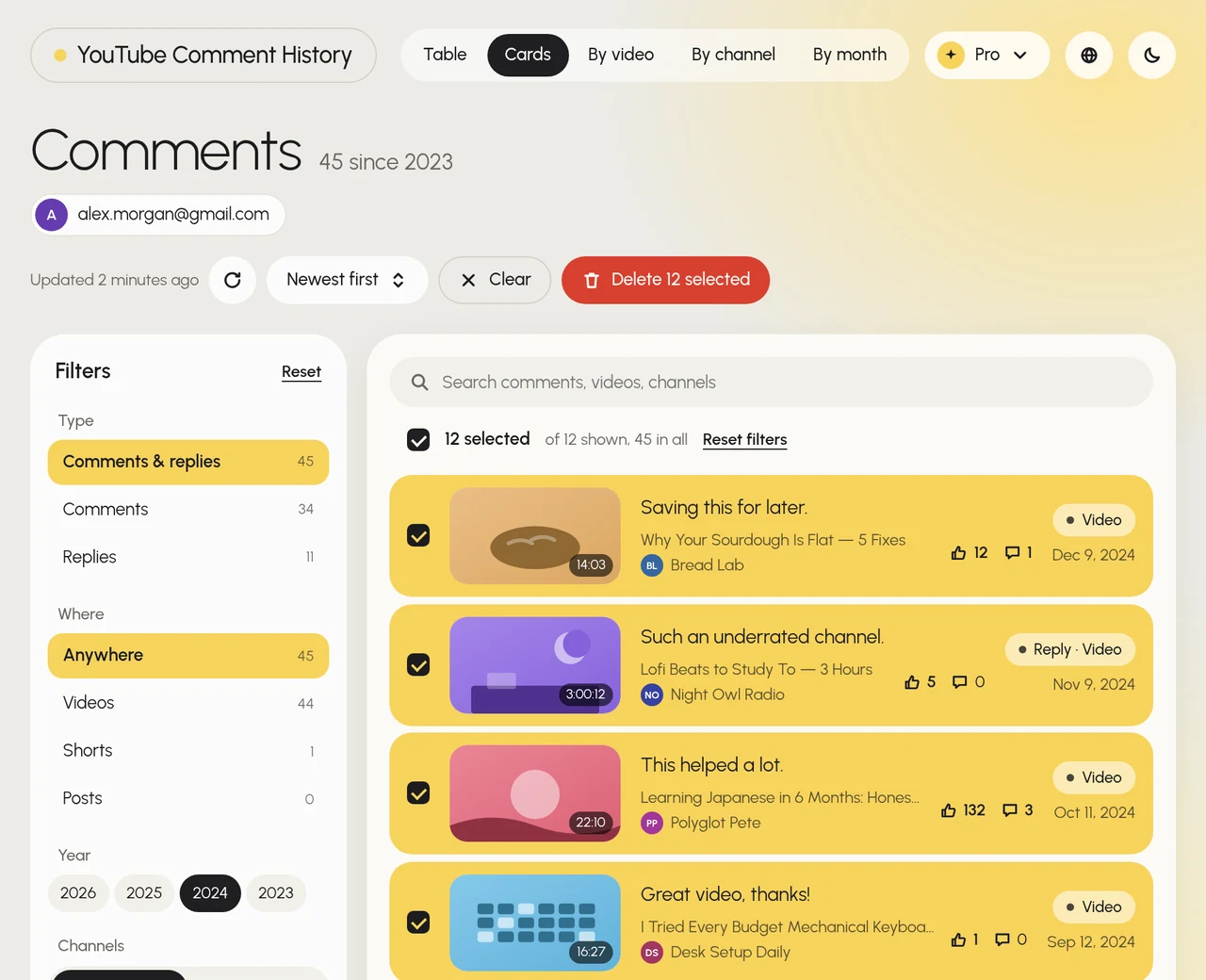
YouTube deletes all your comments in one go only together with everything else on your channel (see below). To delete a selection, like all your comments from one year or under one channel, or your whole comment history while keeping your videos and playlists, I made YouTube Comment History. It loads your comment history from the same My Activity page into a Chrome tab, where you pick comments with filters and delete them with one button.
- Install YouTube Comment History from the Chrome Web Store and click its icon on the Chrome toolbar. It loads your comments with the Google account you’re signed in to in Chrome, so you don’t enter a password.
- Narrow the list with the filters on the left: Year, Channels, Type (comments or replies) and Where (videos, Shorts or posts). To find comments by a word, type it in Search comments, videos, channels.
- Check the box above the list to select all comments shown, or check comments one by one.
- Click Delete N selected and confirm. To delete your whole history, click Delete all instead.
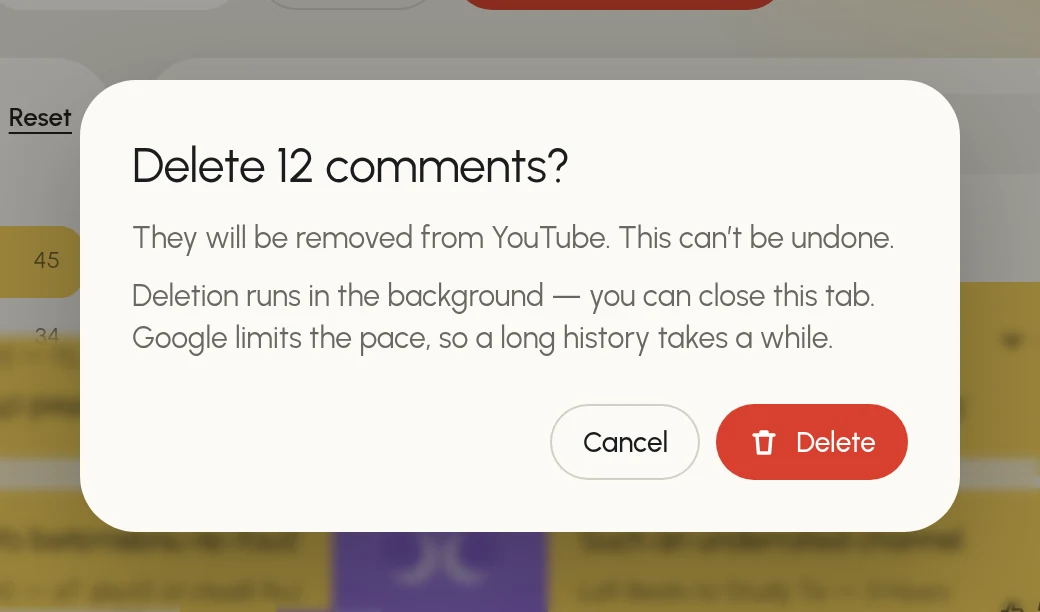
Deletion runs in the background: you can close the tab, and it carries on after a browser restart. Google limits how fast comments can be deleted, so a long history takes a while; when Google asks to slow down, the extension waits and continues by itself. Deleted comments may stay visible on YouTube for a few hours. Comments under videos that are no longer available are in the list too, marked Unavailable, and you can delete them even though the video won’t open. The extension is free to start; deleting a large history needs a paid plan inside the extension.
Delete all comments with your channel’s content
Every account that comments has a YouTube channel: YouTube creates one with your first comment. Deleting the channel’s content deletes all your comments and replies, and much more:
- Open YouTube Studio and select Settings in the left menu.
- Select Channel, then Advanced settings, and at the bottom, Remove YouTube content.
- Choose I want to permanently delete my content, check the boxes and select Delete my content.
This also deletes your videos, playlists, messages and history, and it can’t be undone. It works only on a computer. Your Google Account stays.
Delete a YouTube comment on your phone
- In the YouTube app, open the video and tap the comments.
- Find your comment and tap More ⋮ next to it.
- Tap Delete and confirm.
To delete an old comment without finding the video, open myactivity.google.com/page?page=youtube_comments in your phone’s browser and tap ✕ next to the comment. YouTube Comment History works in Chrome on a computer; the comments it deletes disappear in the app too.
Questions
What happens to the replies when I delete my comment?
They’re deleted with it: the whole thread under your comment disappears. To keep the conversation, edit your comment instead of deleting it.
Does anyone get notified when I delete a comment?
No, YouTube doesn’t tell anyone. A notification that someone already got about your comment or reply stays, but it leads to a comment that’s no longer there.
Can I restore a deleted YouTube comment?
No. A deleted comment is gone from YouTube and from your comment history. The only way back is to post it again.
Why can I still see a comment I deleted?
Deleting from comment history can take a few hours to reach every page of YouTube. Reload the video later.
Can I delete other people’s comments?
Only under your own videos: as the channel owner, you can remove any comment there from its ⋮ menu or in YouTube Studio. Under other people’s videos, you can only report a comment.