

Dub any YouTube video into your language with AI
Only some YouTube videos have a dub, and only in some languages. I built Audio Translator for YouTube™ for all the rest: it dubs any video with subtitles into your language while you watch. There’s nothing to upload, and you don’t wait for the whole video to be processed.
- Install Audio Translator for YouTube™ from the Chrome Web Store.
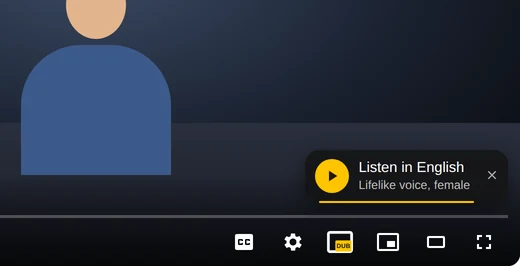
- Open a video in a language you don’t speak. In its first seconds, Listen in English appears on the video (with your language in place of English): click it.
- Missed it? Click the yellow DUB button in the player and press Listen.
- The video waits on pause for a few seconds while the first lines are prepared. You don’t have to wait: press play, and the voice joins in when it’s ready.
How AI dubbing works
Any AI dubbing has three steps: get the text of the speech, translate it and read the translation aloud with a synthetic voice. In Audio Translator they go like this:
- Text. The extension takes the video’s subtitles: the creator’s own or the auto-generated ones YouTube makes for most videos with speech.
- Translation. AI translates the subtitles, improves the translation and adapts it to the pace of the video, so the voice keeps up with the speaker instead of racing ahead or falling behind.
- Voice. An AI voice reads each phrase as the speaker says it.
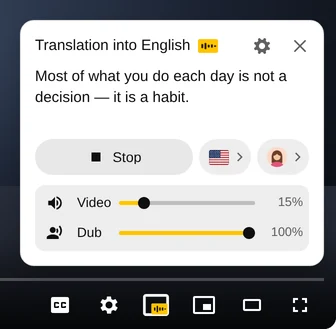
The result is closer to a voice-over than to a studio dub: the original stays audible under the translation, so you still hear the speaker’s tone, the music and the laughter. Two sliders in the panel set the balance: Video is the original, Dub is the translation. Drag Video down to zero, and only the translation remains.
What it doesn’t do: it doesn’t copy the speaker’s voice or move their lips. Dubbing services for creators do that, but they process the whole video before anyone can watch it.
Choose an AI voice and a language
Click the portrait next to the flag in the panel. At the top are Lifelike voices, female and male: these are AI voices that sound like a person. Below them are the voices built into your browser and computer: they sound more robotic, and which ones you have depends on your computer.
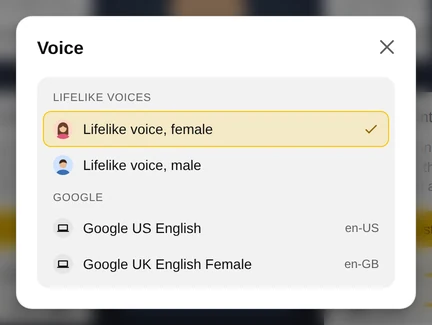
The flag is the translation language: by default it’s the language your YouTube is in, and there are 49 to choose from. The extension remembers the voice and the language for the next videos.
Dub your own video with AI for free
If you make videos, YouTube can dub them itself. This is automatic dubbing, and YouTube doesn’t charge for it. For eligible channels it’s on by default: YouTube translates new uploads, records the translation with an AI voice and adds it to the video as an extra audio track. Viewers hear the dub in their language, and the original stays in the video.
To check that it’s on, on a computer:
- Open YouTube Studio and click Settings, then Channel, then Advanced settings.
- Make sure Allow automatic dubbing is checked, and click Save.
To listen to dubs before viewers do, open the YouTube Studio app on your phone, tap your profile picture, then Settings; under Content, tap Automatic dubbing and choose Publish manually. The dubs of a single video are previewed, published and deleted on a computer: Content → the video → Languages.
Before you rely on it, know its limits:
- The dub languages depend on the video’s language. At the time of writing, English videos are dubbed into 20 languages, and videos in most other languages only into English. Chinese and Vietnamese aren’t among the dub languages. The current list is in YouTube Help.
- Videos longer than 120 minutes, music, videos with little or very fast speech and videos with copyright claims aren’t dubbed.
- Dubs can’t be edited. If YouTube got the video’s language wrong, correct it, and the dubs are made again.
- If the setting isn’t there, your channel doesn’t have automatic dubbing yet. YouTube may offer early access in the same Advanced settings.
If the video is a file, not on YouTube
For a video on your computer, such as a course recording or a clip for TikTok or Reels, you need an AI dubbing service: you upload the file, choose a language and download a dubbed copy. Free plans usually include a few minutes and sometimes add a watermark. Before paying, check that the service lets you edit the translation before the voice is recorded: names and special terms are the usual weak spot of machine translation.
Questions
Is AI dubbing free?
To watch YouTube with Audio Translator, you can start without paying: free dubbing minutes top up regularly, and a paid plan gives you more minutes every day. YouTube’s automatic dubbing costs creators nothing. Dubbing services for files usually give a few free minutes, and then you pay for more.
Does AI dubbing keep the speaker’s voice?
Audio Translator doesn’t copy voices: you choose a female or male AI voice, and the speaker’s real voice stays audible underneath. YouTube’s automatic dubbing tries to keep the speaker’s intonation in some languages and is testing lip sync on some channels.
Can I dub a video into English?
Yes: click the flag in the panel and choose English. Audio Translator dubs from any language that has subtitles, and keeps English for the next videos.
Can I save the dubbed video?
No: Audio Translator plays the voice in your browser while you watch and doesn’t make a file. Nobody else hears it, and the video on YouTube stays the same.
Does it work on a phone?
Audio Translator works in Chrome on a computer: Chrome extensions don’t run on phones. In the YouTube app, you can switch to a dub if the video has one: tap the gear, then Audio track.