
What auto-dubbed means on YouTube
Auto-dubbed means YouTube translated the video itself and recorded the translation with an AI voice. The dub is a separate audio track: the original stays in the video, and you can switch between them. In some languages the voice tries to keep the speaker’s intonation; in others it sounds even and neutral.
An auto-dubbed video has a How this was made section with the Auto-dubbed label in its description.

How to turn on auto-dubbing for a video
- Click the gear icon (Settings) in the bottom right of the player.
- Open Audio track. The item shows which track is playing now.
- Choose your language. The original track is at the top, and YouTube’s dubs are listed under it, under Auto-dubbed.
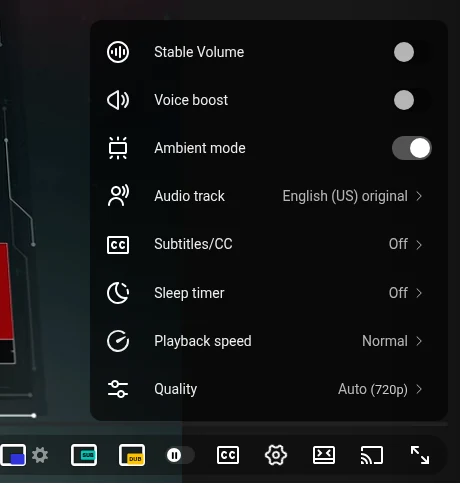
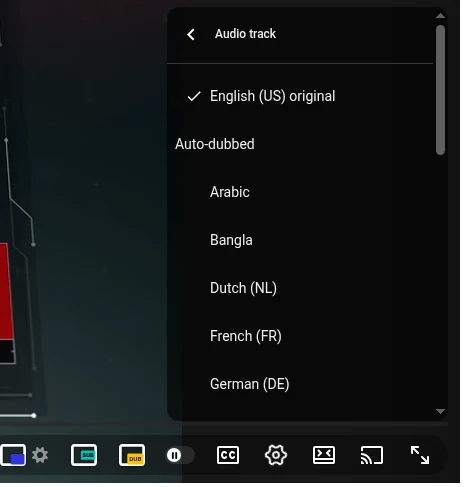
In the YouTube app on a phone it works the same way: tap the video, then the gear, then Audio track.
Make YouTube play the dub on its own
YouTube picks the audio track by the languages it thinks you speak: your YouTube language, your language settings and what you watch. If a video is in a language YouTube believes you understand, it plays the original. So if videos keep starting in a language you don’t know even though they have a dub in yours, check your language settings:
- On youtube.com, click your profile picture and open Settings.
- Go to Playback and performance.
- In the Language section, click Add or edit languages and remove the languages you don’t actually understand.

The setting belongs to your account, so it works on every device where you’re signed in. At the time of writing, there’s no switch that dubs every video: YouTube can only play a dub that already exists.
Why a video has no dub in your language
Viewers can’t turn dubbing on for a video that hasn’t been dubbed: that’s up to YouTube and the creator. Most often there’s no dub because:
- the creator turned auto-dubbing off or didn’t publish the dub: creators can review dubs before they go live;
- the video came out before auto-dubbing: YouTube dubs new uploads and gets to older videos only gradually;
- YouTube doesn’t dub from the video’s language into yours yet. At the time of writing, it dubs English videos into about twenty languages and videos in about thirty languages into English; the current list is in YouTube Help;
- the video is longer than two hours, is mostly music, has little speech or speech that’s too fast, or contains copyrighted material.
That’s why most videos on YouTube have no dub in your language.
Hear any video in your language, with or without a dub
I built Audio Translator for YouTube™ for the videos YouTube hasn’t dubbed. It translates the video’s subtitles, the creator’s or the auto-generated ones, and reads them aloud in your language, in time with the speaker. It works on any video with subtitles, in 49 languages, including ones YouTube doesn’t dub into.

- Install Audio Translator for YouTube™ from the Chrome Web Store.
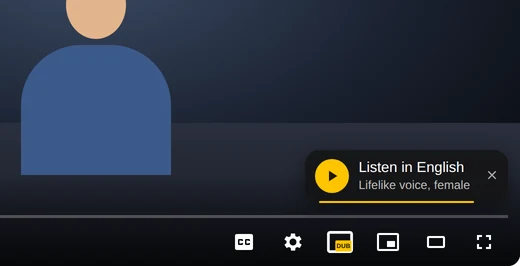
- Open a video in a language you don’t speak. In its first seconds, Listen in English appears on the video (with your language in place of English): click it, and the voice starts.
- Missed it? Click the yellow DUB button in the player and press Listen.
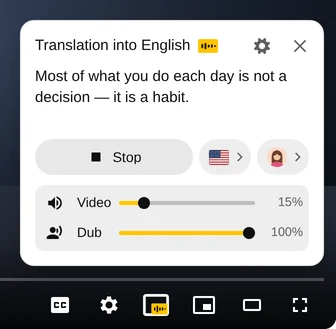
Unlike YouTube’s dub, the original doesn’t disappear: it plays quietly under the translation, and the Video and Dub sliders set the balance. You choose the voice, a lifelike female or male one, and the language with the flag. If YouTube has dubbed the video, the extension switches to the original track while it reads and brings the dub back when you stop. Free minutes top up regularly, and a paid plan adds more.
Questions
Is YouTube auto-dubbing free?
Yes: viewers don’t pay for YouTube’s dubs.
Can I change the voice of YouTube’s dub?
No. YouTube generates the voice itself, and viewers can only choose the track. In Audio Translator, you pick the voice in the panel.
The dub plays in a language I don’t need
YouTube guessed your language from your settings and what you watch. Switch to the original in Audio track, and to stop YouTube dubbing a language you understand, add it to your preferred languages in the same settings as above.
Does it work on a phone?
YouTube’s dubs do: in the app, tap the gear, then Audio track. Audio Translator works in Chrome on a computer: Chrome extensions don’t run on phones.